
Before You Start
From your SelectFI homepage:
- Click Account in the top right corner of the screen.
- Select User Management from the tabs at the top left.
This opens the User Management screen, where you'll manage everyone with access to your SelectFI account — including who's invited, their role, and their store access.
Step 1: Invite a New User
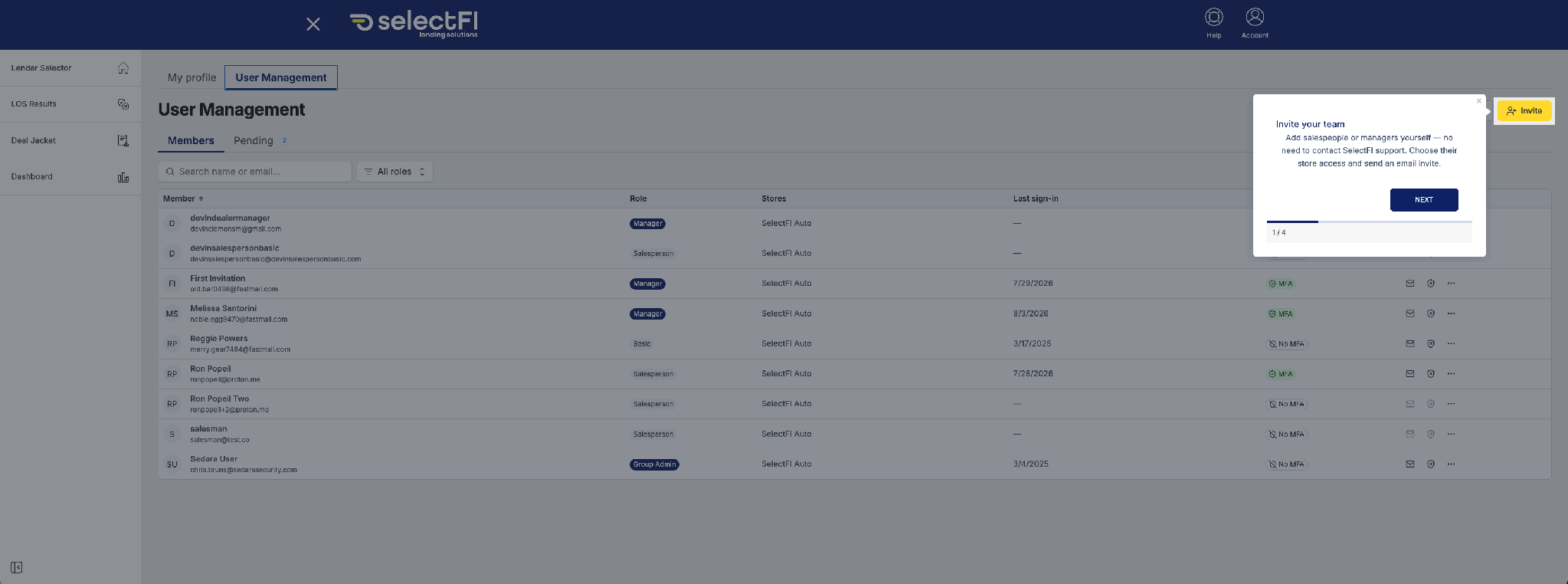
From the User Management screen, click the yellow Invite button in the top right corner.
You'll be able to add salespeople or managers yourself — no need to contact SelectFI support. Choose their store access and send an email invite directly.
|
Tip: Managers and salespeople can both be added this way. Just make sure you select the correct role and store access before sending the invite. |
Step 2: Track Your Invitations
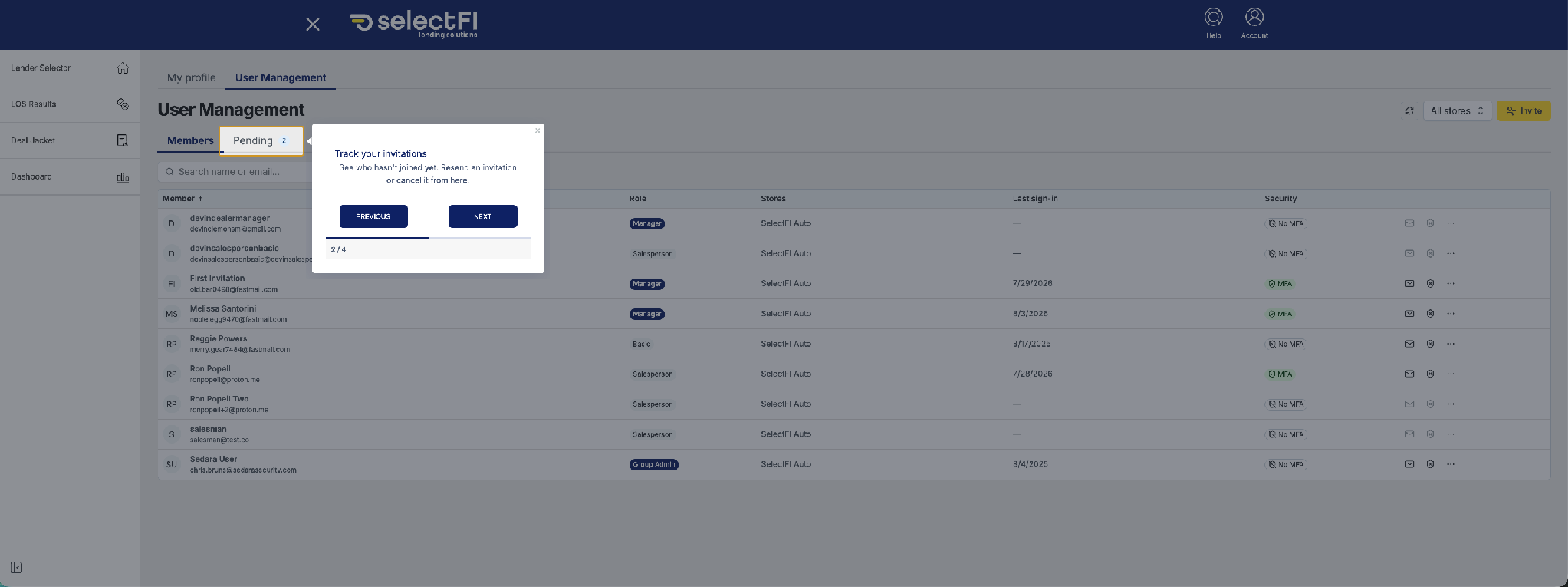
Click the Pending tab (next to Members) to see everyone you've invited who hasn't joined yet.
From here, you can resend an invitation or cancel it if it's no longer needed.
|
Tip: If an invite has been pending for a while, resending it is often faster than troubleshooting — the link may have simply expired. |
Step 3: Manage Existing Team Members
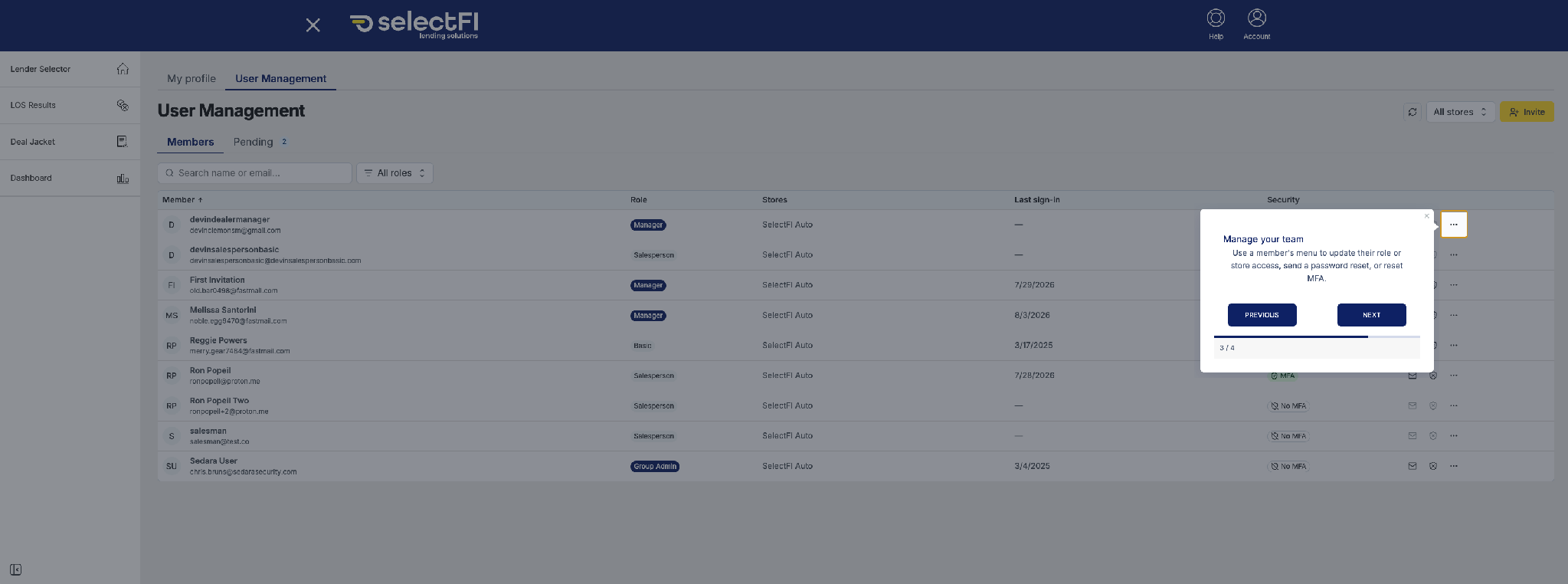
Once a user has joined, use the ••• menu next to their name (on the right side of their row) to manage their account.
From this menu you can:
- Update their role (e.g., Salesperson, Manager, Basic)
- Send a password reset
- Reset their multi-factor authentication (MFA)
Step 4: Find Someone Fast
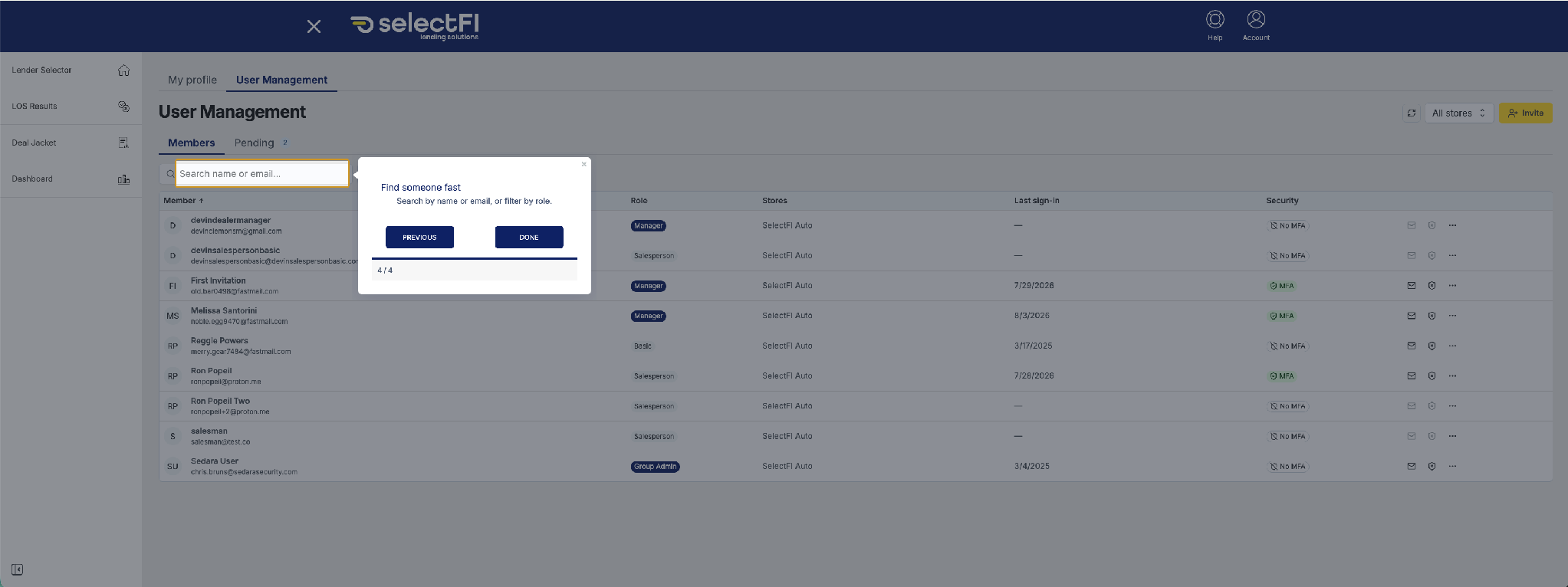
Use the search bar at the top of the Members list to quickly find a specific user by name or email.
You can also use the All roles filter next to the search bar to narrow the list down by role.
- Account (top right) → User Management (top left)
- Invite button → add a new user and set their store access
- Pending tab → track, resend, or cancel invitations
- ••• menu next to a member → update role, reset password, or reset MFA
- Search bar → find any user fast by name, email, or role
Questions? Reach out to your SelectFI account team and we'll be happy to help.