
From your SelectFI homepage:
- Click Account in the top right corner of the screen.
This opens your account settings, where your app links are managed alongside your profile and store details.
Step 1: Find Your Links
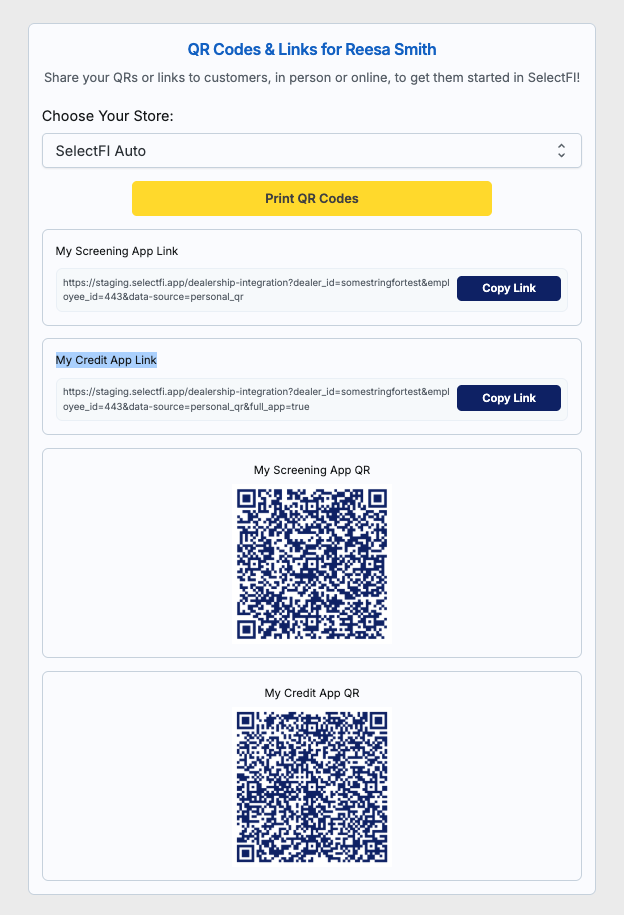
From the Account page, scroll down to the QR Codes & Links section. You'll see My Screening App Link and My Credit App Link listed, each with its own Copy Link button.
|
Tip: These are two separate links with two different purposes — make sure you're sharing the right one for what your customer needs. |
Step 2: Copy the Link You Need
Click Copy Link next to My Screening App Link to copy the link customers use to start the screening process.
Click Copy Link next to My Credit App Link to copy the link customers use to submit a credit application.
Step 3: Share the Link
Paste the copied link wherever you need it — a text message, email, or your website — so customers can access it directly.
|
Tip: Bookmark this page or save both links somewhere handy if you send them out often — it saves a trip back to Account every time. |
- Account (top right)
- Scroll down to find My Screening App Link and My Credit App Link
- Click Copy next to the link you need
- Paste and share with your customer
Questions? Reach out to your SelectFI account team and we'll be happy to help.