
From your SelectFI homepage:
- Click Account in the top right corner of the screen.
This opens your account settings, where your QR codes and links are managed alongside your profile and store details.
Step 1: Scroll to QR Codes & Links
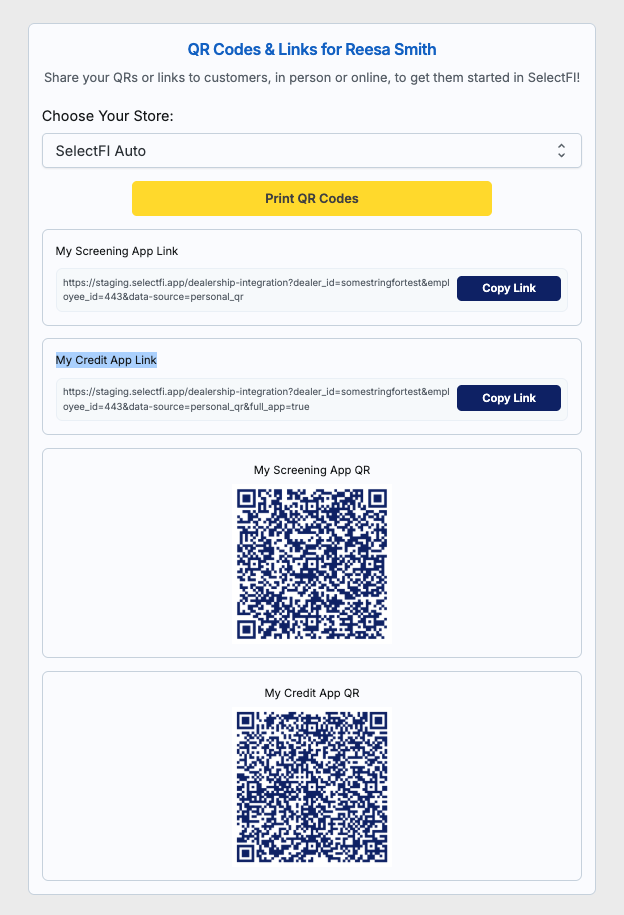
From the Account page, scroll down until you reach the QR Codes & Links section. This is where you'll find your store selector, the Print QR Codes button, both app links, and your QR codes — all in one place.
Step 2: Select Your Store (if applicable)
If your account has access to more than one store, use the Choose Your Store dropdown to select the correct one before printing.
If your account only has one store, this will already be selected — you can move straight to printing.
|
Tip: Always double-check the store selected here before printing, especially if you manage more than one location — the QR codes are store-specific. |
Step 3: Print Your QR Codes
Click Print QR Codes to generate a print-ready version of your store's QR codes.
|
Tip: Print a fresh set any time your store details change, or if existing signage is showing wear — an outdated or damaged QR code can send customers to the wrong link. |
- Account (top right)
- Scroll down to QR Codes & Links
- Select your store, if applicable
- Click Print QR Codes
Questions? Reach out to your SelectFI account team and we'll be happy to help.